Start a new project
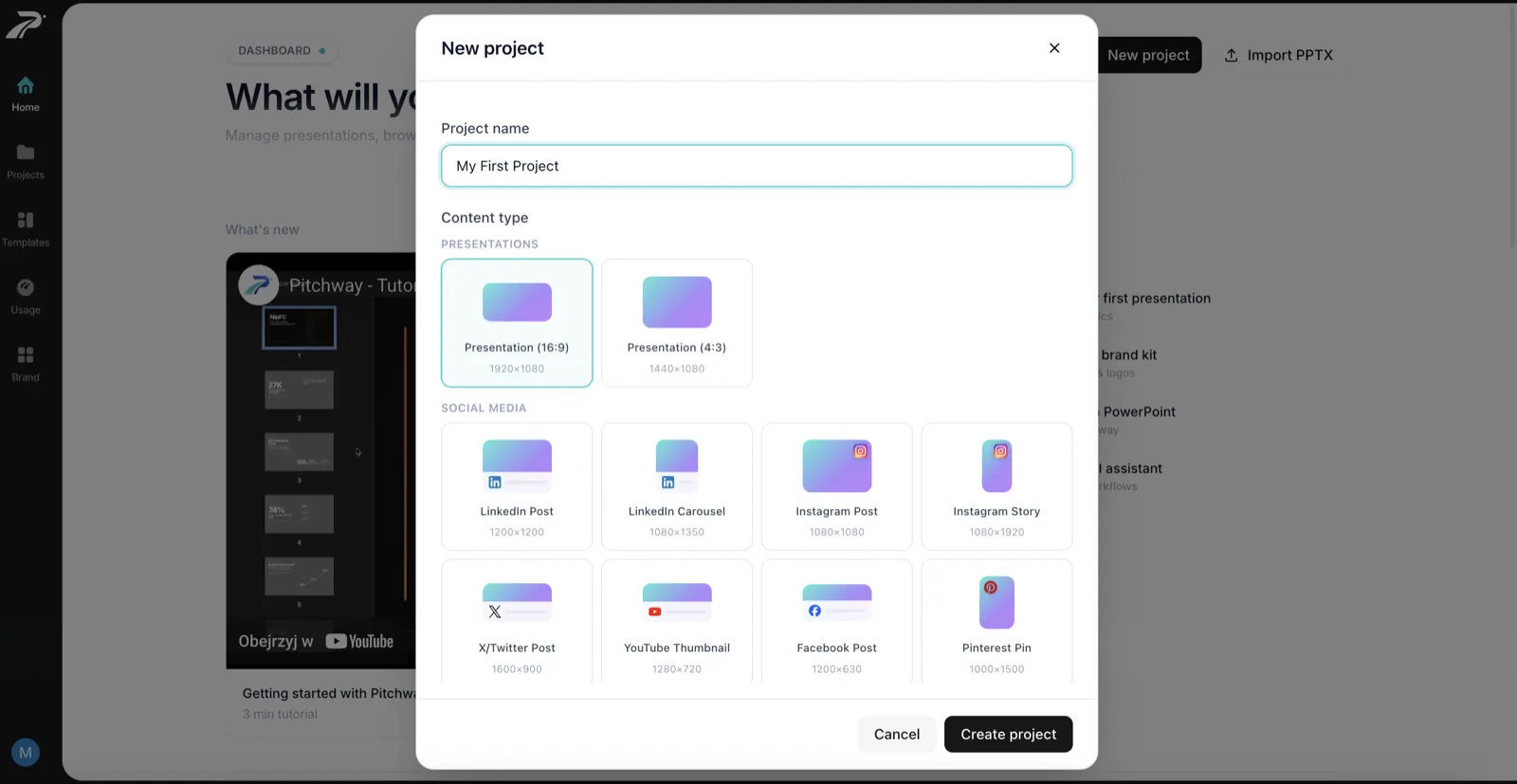
From the dashboard, click New project and give it a name. Choose a content type - a standard 16:9 presentation is the default, but you can also pick social media formats like Instagram stories or LinkedIn carousels.
Meet the editor
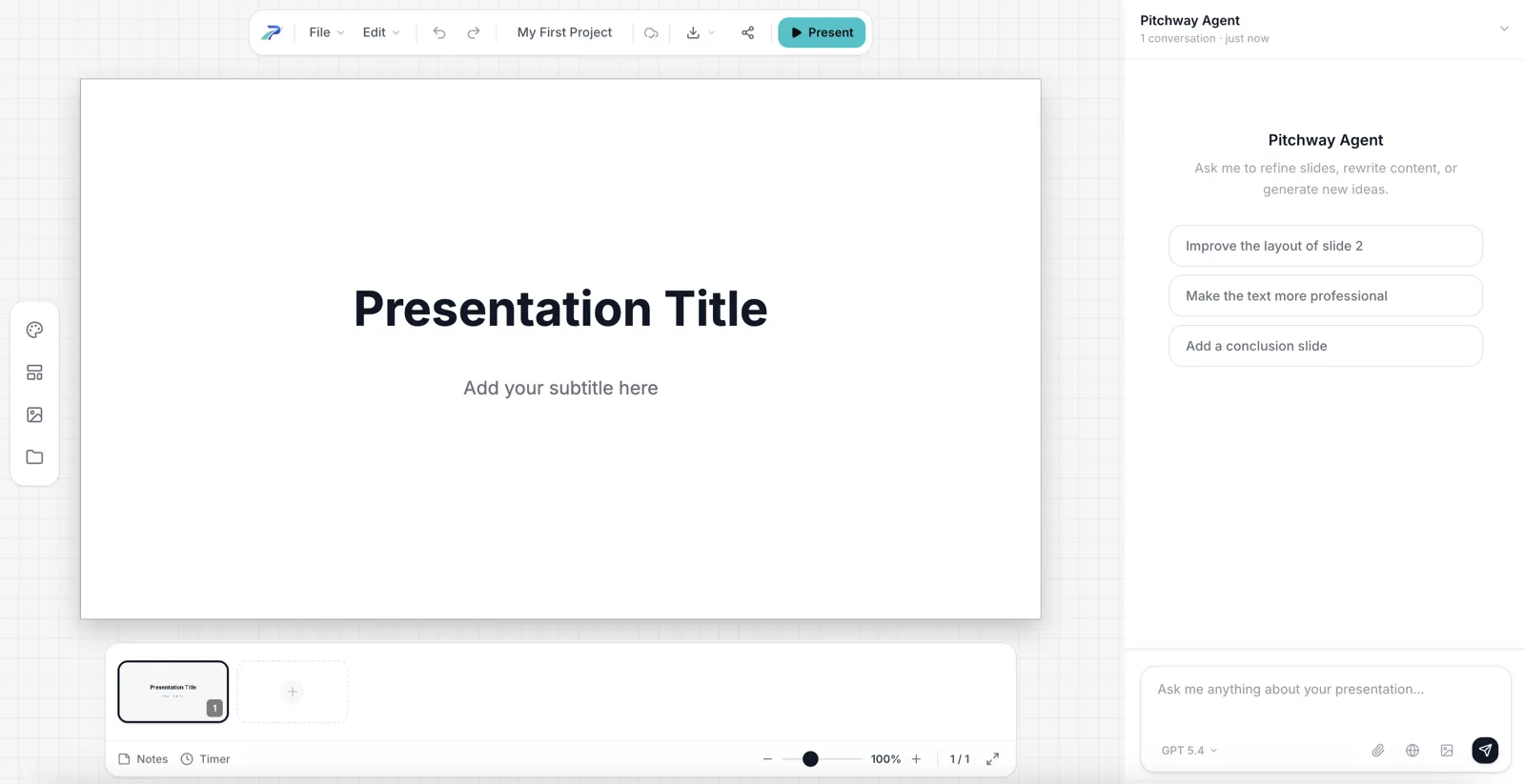
The editor has three main areas:
- Stage - the large canvas where your slide lives
- Bottom bar - thumbnail strip for navigating between slides
- Agent sidebar - your AI co-pilot on the right
Edit the title slide
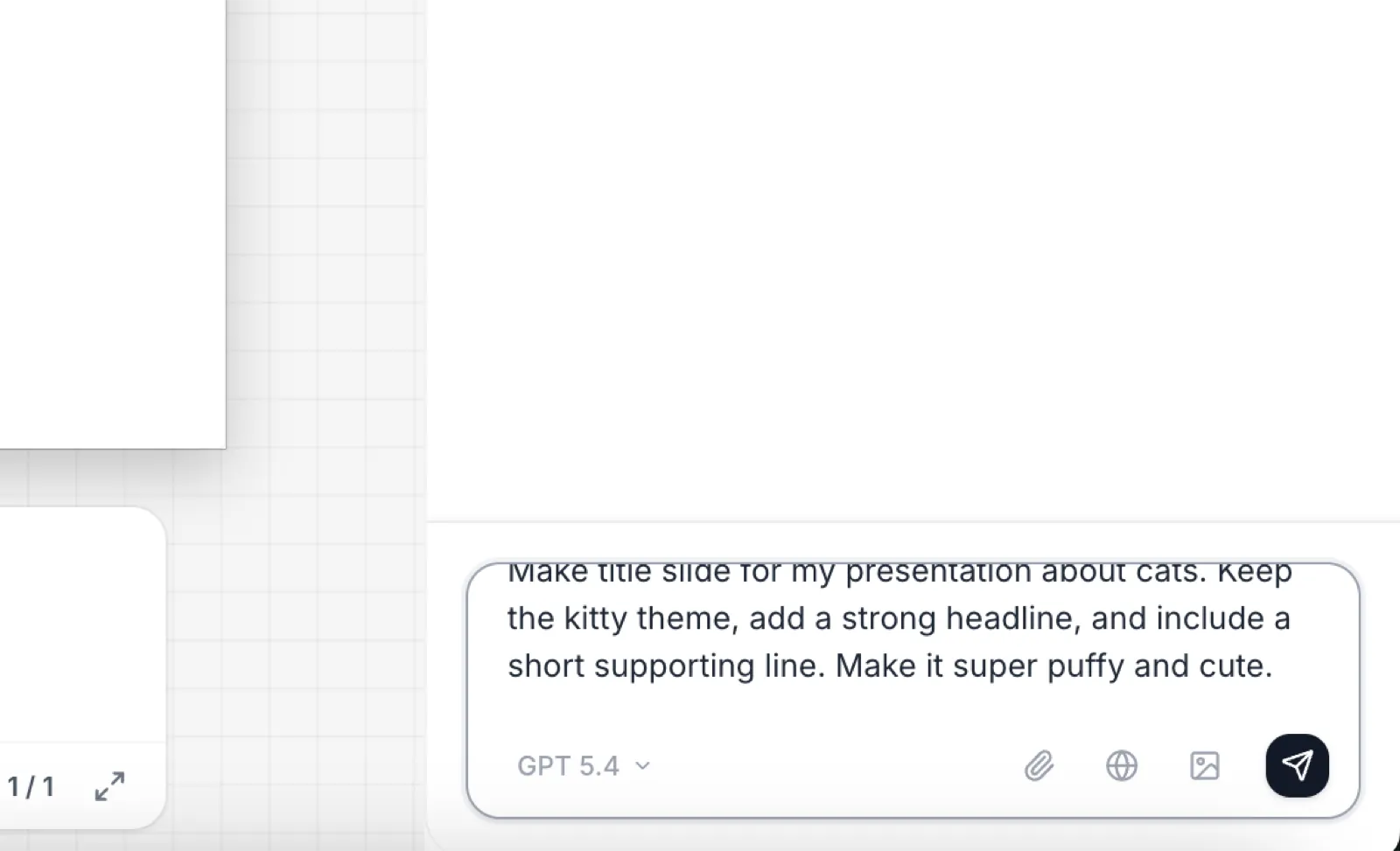
Start by editing the title slide with AI. In the Agent sidebar, try something like:
Make title slide for my presentation about cats. Keep the kitty theme, add a strong headline, and include a short supporting line. Make it super puffy and cute.
The agent will generate the slide for you and you will see it appear on the canvas in real time.
After a while, you will see the new, super puffy and cute title slide appear on the canvas!

Edit content directly
You can click on any elment on the slide to select it. After you clicked on the element, you can press & hold the mouse button to move the element around.
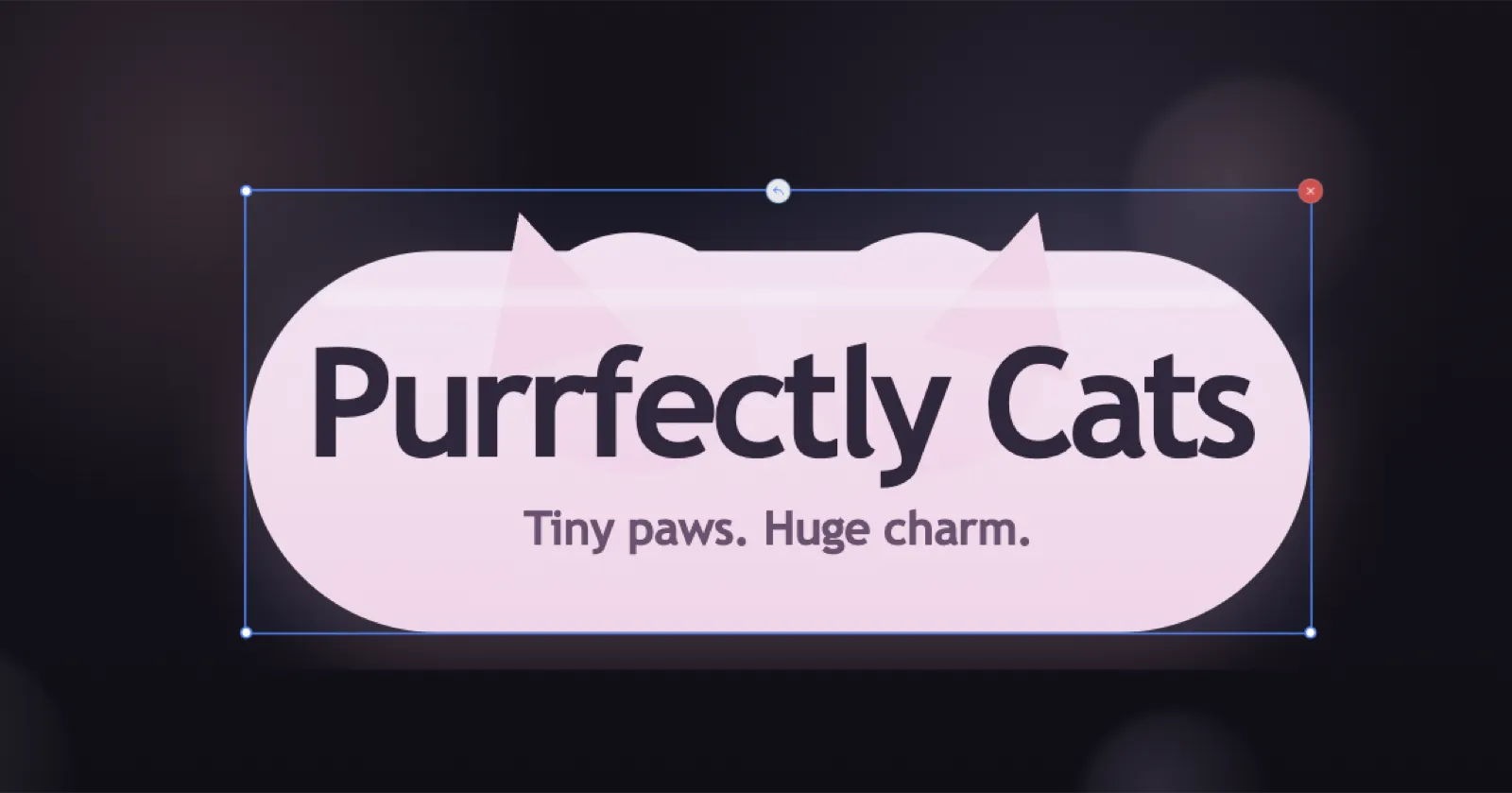
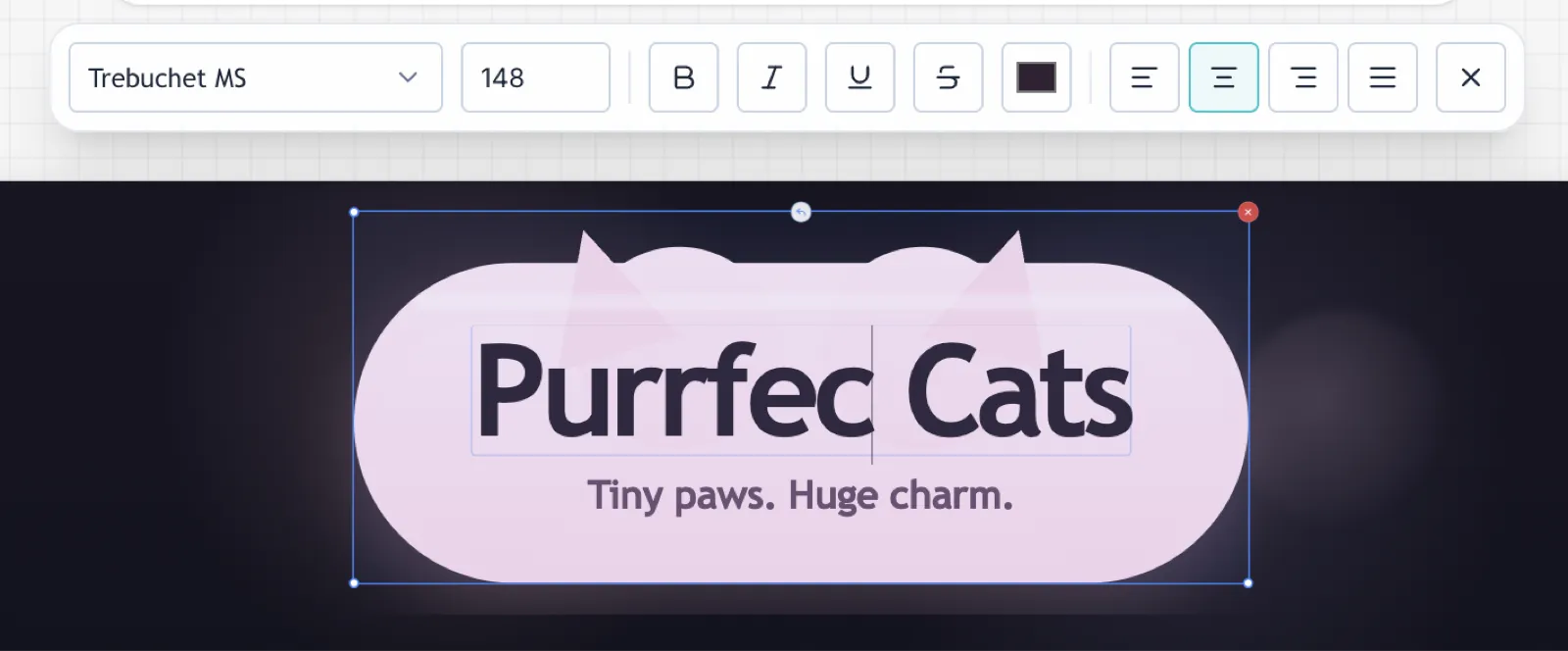
You will also see special return button (in the middle of top border of the element) that will bring the element back to the original position. In top right corner of the element you will see red X button that will delete the element.
Click on any text element on the stage to edit it inline. You can change font size, weight, color, and alignment from the floating toolbar that appears.
Use the AI to iterate
The AI assistant is not just for creating slides from scratch. You can ask it to:
- create new slide
- change the color scheme of a slide
- add a chart
- generate image
Let's try to add puhrrastic background to the slide. In the Agent sidebar, try something like:
Add puhrrastic background image to the title slide. Make it super puffy and cute.
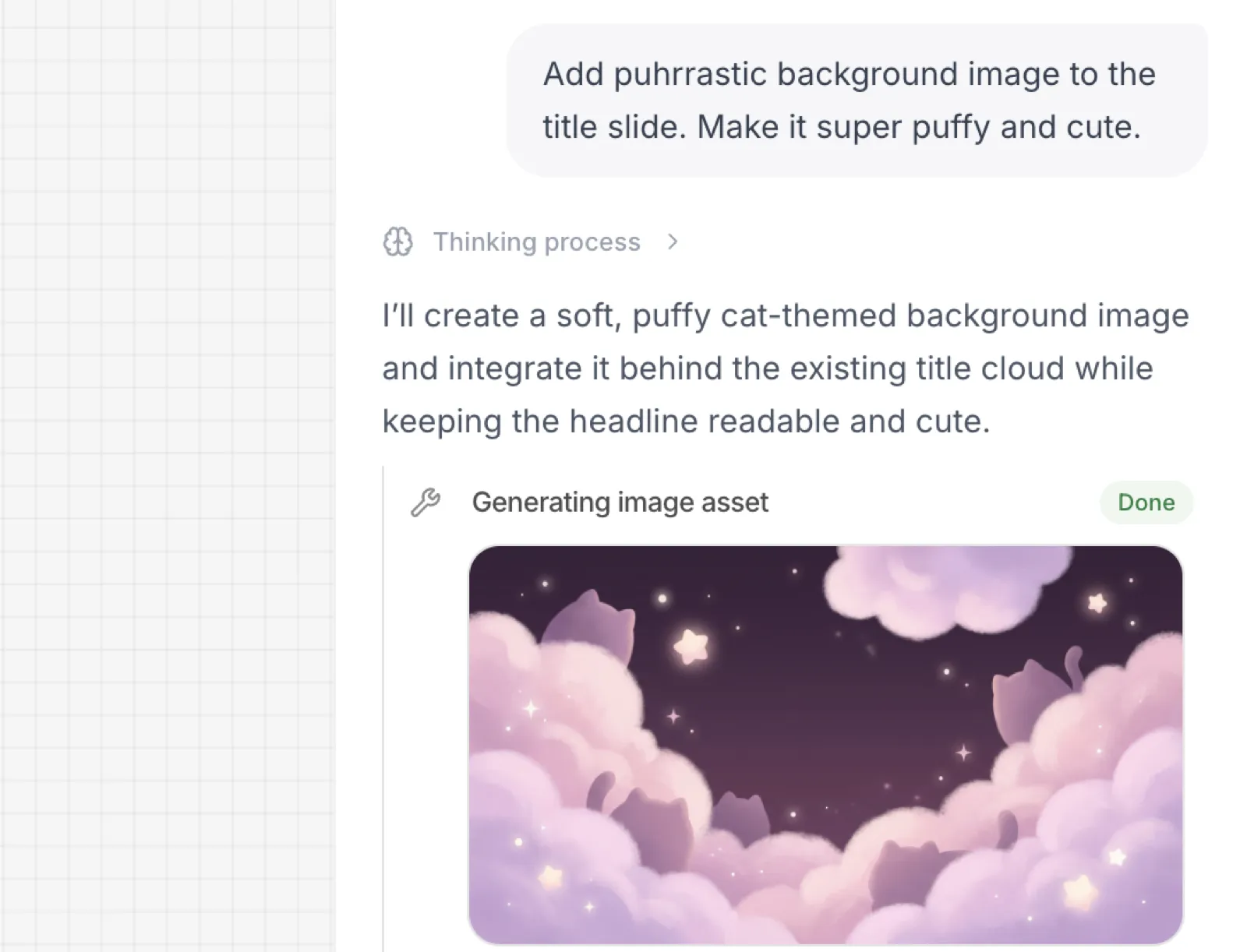
The agent will generate the background for you and you will see it appear on the canvas in real time.
After a while, you will see the new, super puffy and cute background appear on the canvas!

Each change streams in live so you can watch the deck evolve.
Adding images via chat
You can also add images to your AI assitant by either drag & drop or by clicking on the + button in the bottom of the Agent sidebar.
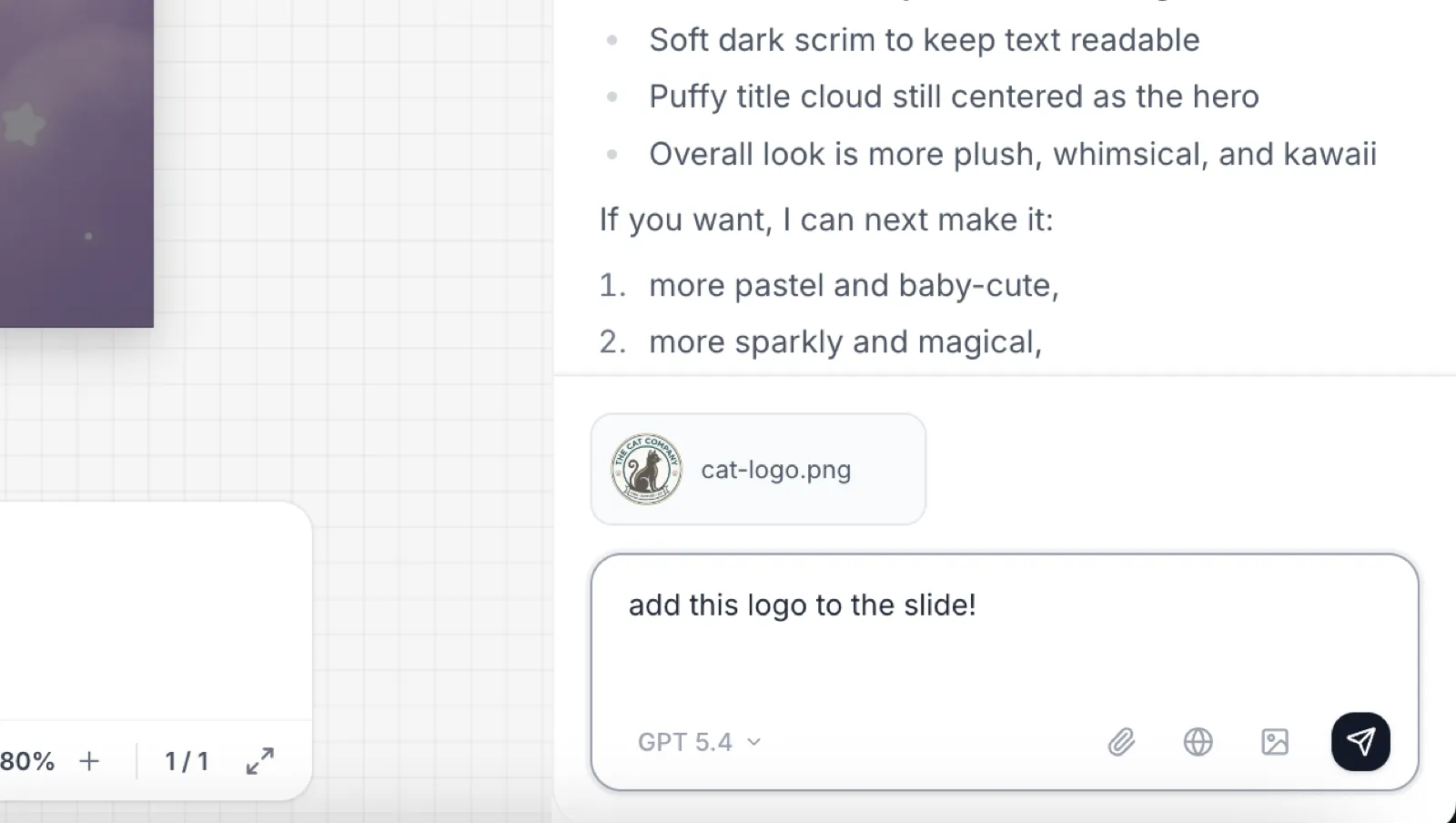
You can use this feature to show something visually to your Agent or to ask it to place the image on the slide!

Present or export
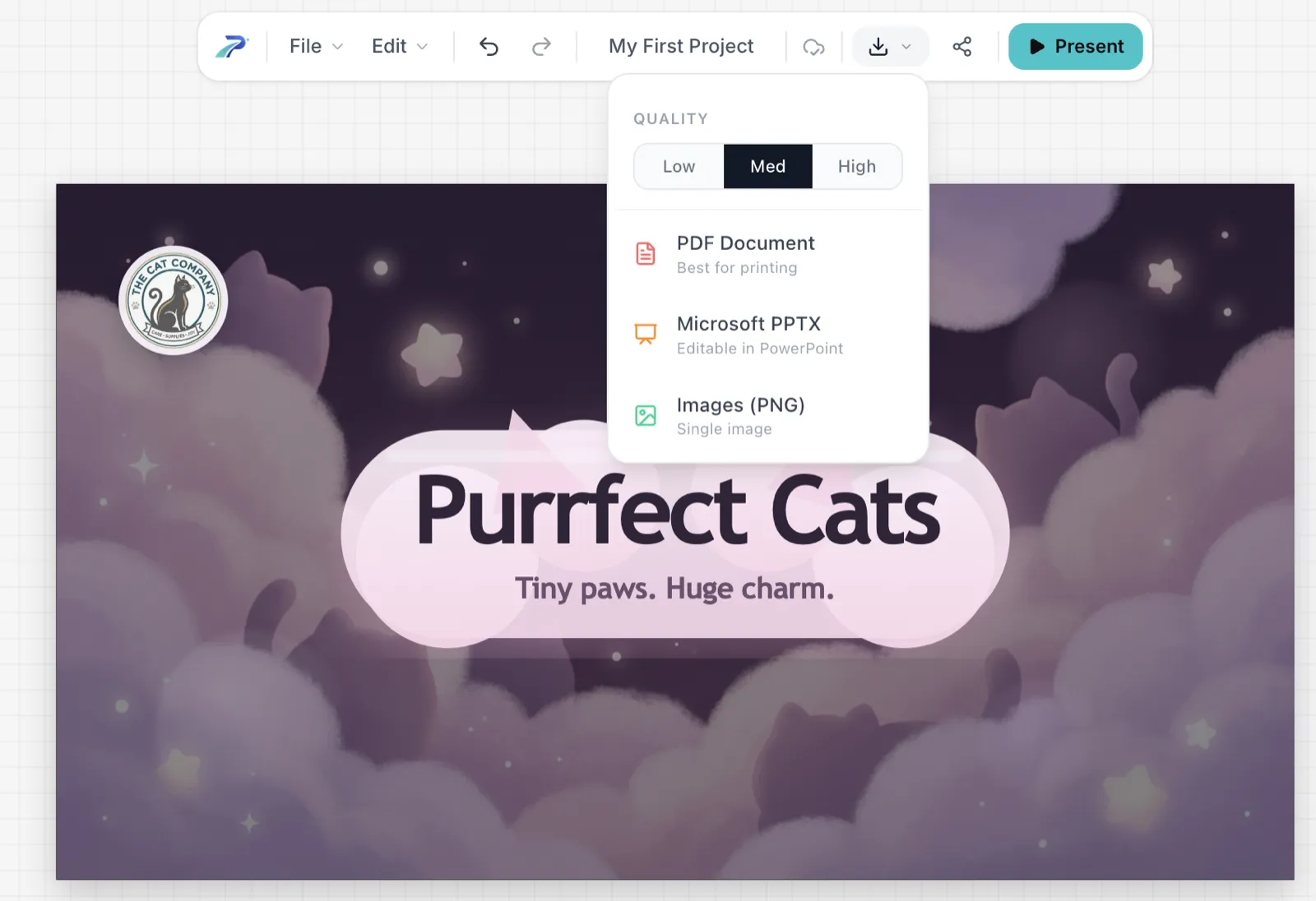
When you are ready, you can either click the Present button in the header to enter full-screen presentation mode or you can export your deck as a PDF from the export menu.
Happy Vibe-Presenting!
Now you are ready to start your presentation! Feel free to ask Agent to create more slides or to edit the existing ones.
Next steps
- Set up your brand kit so every new slide matches your visual identity
- Import an existing PowerPoint to bring legacy decks into Pitchway
- Learn advanced AI workflows to get the most out of the assistant